Phone Repair Glendale AZ: 5 Ways to Never Lose Your Data

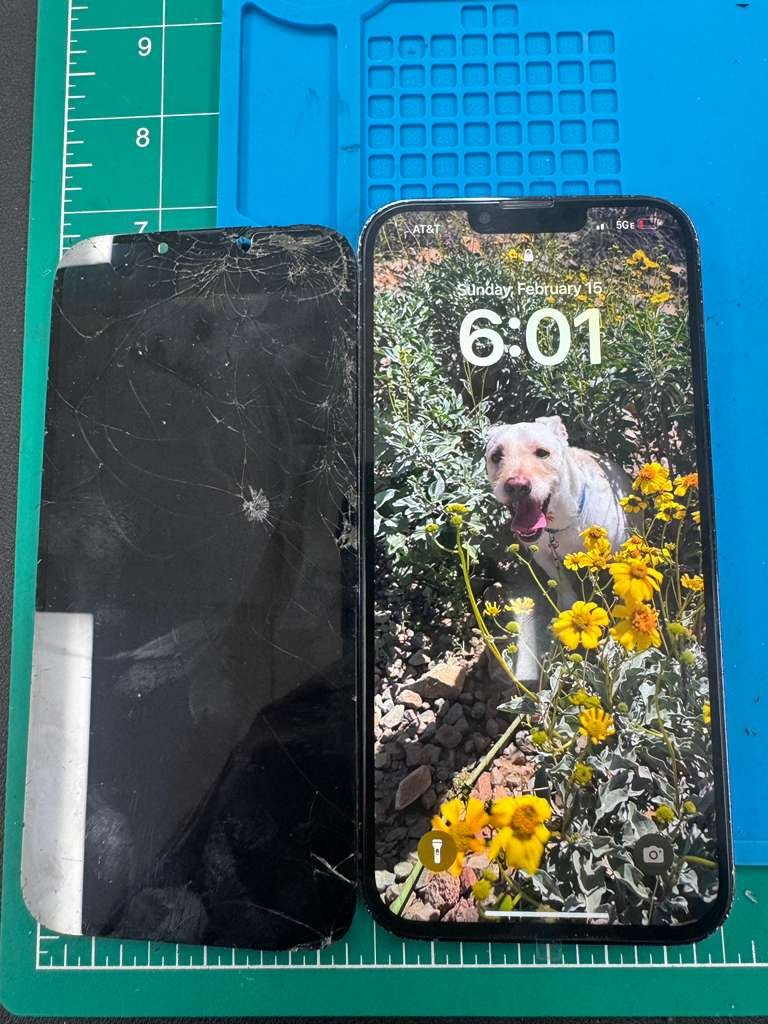
At our phone repair shop in Glendale, AZ, we see it every single week — a customer walks in with a cracked screen or a water-damaged device, and the very first question they ask is: “Can you save my data?” As the West Valley’s trusted phone repair Glendale AZ specialists, we know that data loss is devastating. The good news: it is almost always 100% preventable. Here are the five steps our certified technicians recommend to every iPhone and Android user in Glendale.
Enable Cloud Backup — #1 Tip from Phone Repair Glendale AZ Experts
The single most effective safeguard you can implement takes less than two minutes and is completely free. Automatic cloud backup is the foundation of any solid data protection plan — and something every phone repair Glendale AZ technician will tell you to set up immediately.
iPhone — iOS
Settings → [Your Name] → iCloud → iCloud Backup → toggle on. Backs up nightly over Wi-Fi while charging.
Android — Google
Settings → Google → Backup → enable Google Drive backup. Runs silently in the background at no cost.
Learn more about how iCloud backup works directly from Apple’s official iCloud backup guide, or check out Google’s Android backup support page for step-by-step setup.
Sync Photos to a Second Location
Photos and videos are the most emotionally irreplaceable data on any device. Our team advises maintaining at least two synchronized copies at all times. A single backup is a single point of failure.
For iPhone users, iCloud Photos provides seamless syncing. Google Photos is an excellent free secondary option with 15 GB of storage. Android users benefit from Google Photos by default — consider Amazon Photos or Dropbox as additional layers of protection.
From our Glendale repair bench
If your memories exist in only one place, they are effectively at risk. Two locations is the minimum — three is ideal.
Back Up to Your Computer Once a Month
Cloud services are reliable — but they are not infallible. Account suspensions, service outages, or compromised credentials can temporarily block access to your data. A local backup on your personal computer gives you an independent safety net no online service can disrupt. This is especially important before any phone repair Glendale AZ appointment — always back up before you hand over your device.
iPhone
Use Finder (macOS) or iTunes (Windows) for a full encrypted backup — saves passwords, Health data, and all app content.
Android
Connect via USB, enable File Transfer mode, and copy DCIM, Documents, and Downloads to your computer.
[Image: iTunes backup — alt=”iPhone computer backup iTunes for phone repair Glendale AZ”]
For a detailed walkthrough, visit Apple’s guide to backing up iPhone on your computer.
Secure Your Apple ID or Google Account with 2FA
Not all data loss is physical. A compromised account can be equally devastating — enabling bad actors to remotely erase your device or permanently delete your backups. Account security is a core part of what we advise at our phone repair Glendale AZ shop.
[Image: 2FA setup — alt=”two factor authentication setup phone repair Glendale AZ account security”]
At minimum, protect your Apple ID or Google account with a strong, unique password and two-factor authentication (2FA) — both are free and take under five minutes. For broader password hygiene, a reputable password manager such as Bitwarden (free) is a sound investment.
Manually Export Contacts, Messages & Key Documents
Automatic backups are comprehensive but not infallible. Certain data types benefit from dedicated manual archiving — something every phone repair Glendale AZ customer should do before a repair visit or device upgrade.
Contacts can be exported as a .vcf file and saved to your email or cloud drive. Text messages are best archived using iMazing for iPhone or SMS Backup & Restore for Android. Any document of significance — contracts, receipts, medical records — should live in Google Drive or iCloud Drive, not only on your device’s local storage.